
 Technologies
A few weeks ago we released Google Buzz for mobile. There are many ways to access Google Buzz from your phone, but the web app (buzz.google.com) provides the most complete viewing and posting experience on an iPhone or Android 2.0+ device (more platforms are coming soon). Today, we'd like to share some tips on how to get the most out of the Google Buzz web app on your phone.
1. Search for a place to post from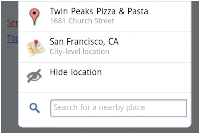
Tagging a post with your location is easy and fun. You can just tap the location box in the posting screen to add a place name or an address. Or, you can search for a place. Click ">" in the location box and scroll down a bit to find the search box. This will allow you to search for places nearby and tag your post with that location.
2. Learn more about a tagged place
When you see a location tag and the little red pin attached to someone's post, you might want to learn more about that place. Click 'Show map' to see the address of that place and a small map, which you can tap to see a bigger, fully functional map. You can also click the place link to view business details, reviews, photos, and more.
3. Choose to share privately or publicly
The Google Buzz web app provides options to share your post publicly on the web or privately with the groups you select. To create a new group to share privately, you'll need to visit Buzz in Gmail or google.com/contacts from your computer. Your location is attached to your post by default, either as an address or a place. If you don't want it attached, you can simply tap the 'Remove location' link. Next time you post, we will remember your choices for the sharing option (public or private) and for the location tagging option (whether or not to include location).
4. View mobile profiles and follow new people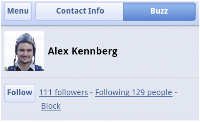
You'll often find interesting public posts or comments made by people you're not following yet. If you'd like to start following them, simply tap on their name to visit their mobile profile page, click the 'Buzz' tab, and tap 'Follow'. The 'Contact Info' tab includes info pulled from their public Google profile that they've chosen to share and any additional info you may have about them in your contacts, making it easy for you to contact them with one click.
5. Auto-finish @reply
When you want to include someone in a post or comment, you can use the @reply feature. On mobile devices, simply type "@user", which will be automatically expanded to "@user@gmail.com" for you. This will save you time typing on the phone.
Stay tuned for more tips, and visit our Help Center to learn more. We also love to hear your feedback in our forum and your suggestions on the Mobile Product Ideas page!


Source : ...
1. Search for a place to post from

Tagging a post with your location is easy and fun. You can just tap the location box in the posting screen to add a place name or an address. Or, you can search for a place. Click ">" in the location box and scroll down a bit to find the search box. This will allow you to search for places nearby and tag your post with that location.
2. Learn more about a tagged place

When you see a location tag and the little red pin attached to someone's post, you might want to learn more about that place. Click 'Show map' to see the address of that place and a small map, which you can tap to see a bigger, fully functional map. You can also click the place link to view business details, reviews, photos, and more.
3. Choose to share privately or publicly

The Google Buzz web app provides options to share your post publicly on the web or privately with the groups you select. To create a new group to share privately, you'll need to visit Buzz in Gmail or google.com/contacts from your computer. Your location is attached to your post by default, either as an address or a place. If you don't want it attached, you can simply tap the 'Remove location' link. Next time you post, we will remember your choices for the sharing option (public or private) and for the location tagging option (whether or not to include location).
4. View mobile profiles and follow new people

You'll often find interesting public posts or comments made by people you're not following yet. If you'd like to start following them, simply tap on their name to visit their mobile profile page, click the 'Buzz' tab, and tap 'Follow'. The 'Contact Info' tab includes info pulled from their public Google profile that they've chosen to share and any additional info you may have about them in your contacts, making it easy for you to contact them with one click.
5. Auto-finish @reply
When you want to include someone in a post or comment, you can use the @reply feature. On mobile devices, simply type "@user", which will be automatically expanded to "@user@gmail.com" for you. This will save you time typing on the phone.
Stay tuned for more tips, and visit our Help Center to learn more. We also love to hear your feedback in our forum and your suggestions on the Mobile Product Ideas page!
Source : ...
 Mobile Value Added Services (MVAS) Market by Solution, by End User, by Vertical, & by Geography - Global Forecast and Analysis to 2020 - Reportlinker Review